How to Keep Your Slack Status Green While Working Remotely
Remote work has created a surprisingly common problem.
You are actively working, reading documentation, reviewing reports, watching training videos, researching information, or writing content, yet Slack suddenly marks you as Away.
For remote workers who spend most of the day alone, Slack often becomes one of the main ways of staying connected with colleagues. If working from home has started to feel isolating, our guide on how to stop feeling isolated while working from home explains practical ways to stay connected while working remotely.
The issue is not that you stopped working. The issue is that Slack often interprets inactivity differently from actual productivity.
Many remote workers have experienced the same situation. You spend thirty minutes reading a PDF, reviewing a technical document, watching a mandatory training session, or researching information online. In fact, many professionals spend large portions of their day working with digital documents and reports, including files in the widely used PDF format developed by Adobe, only to discover that your Slack status has quietly switched from Active to Away.
If you work in an environment where managers pay attention to Slack activity, this can become frustrating very quickly.
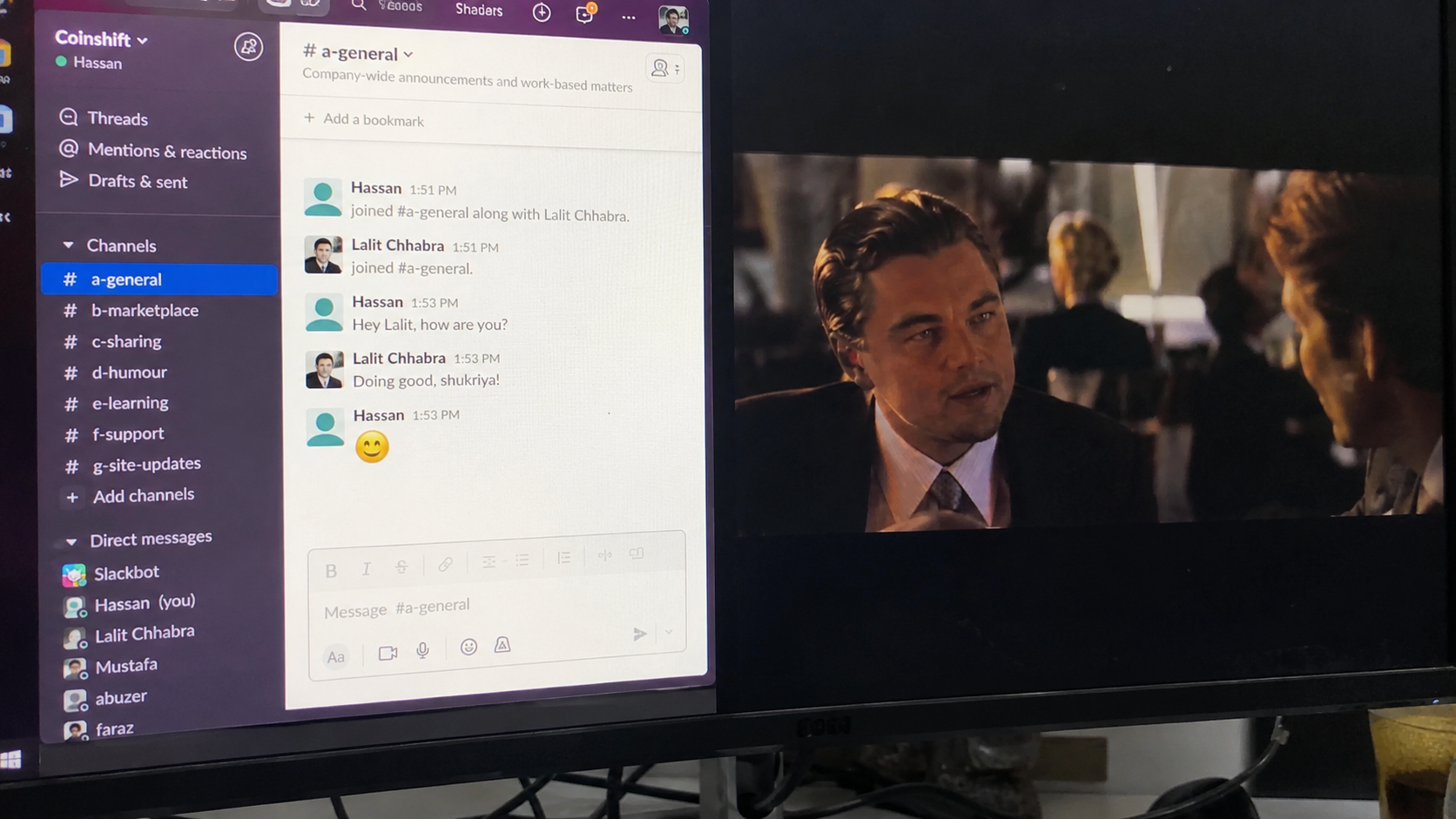
Many remote workers experience Slack anxiety while working remotely, especially in companies where online presence is closely watched. In my case, seeing Slack repeatedly switch to Away while I was actively working became a constant distraction until I found a practical solution.
Fortunately, there are several practical ways to keep your Slack status green while working remotely.
Why Slack Shows You as Away When You Are Still Working
The first thing to understand is that Slack does not know whether you are working.
Slack only knows whether it can detect activity from your device.
In many cases, productive work generates very little activity.
For example:
- reading a PDF report;
- reviewing a contract;
- watching a training video;
- reading documentation;
- conducting research;
- participating in a webinar;
- taking notes on paper.
You may be fully engaged in your work while barely touching your keyboard or mouse.
From Slack’s perspective, however, inactivity often looks exactly the same as stepping away from your desk.
This explains why people frequently ask:
- why does Slack show me away when I am working
- how to stop Slack from going inactive
- how to prevent Slack from showing away
The answer is usually simple: Slack is measuring activity signals rather than actual work.
Reading PDFs
PDF readers often require little interaction once the document is open.
You may spend twenty minutes reviewing a report without touching your keyboard.
Slack interprets that period as inactivity.
Watching Training Videos
Many companies use recorded training sessions.
Once a video starts playing, you might not touch your computer for an extended period.
Slack may eventually switch your status to Away even though you are actively participating.
Research Work
Research is one of the biggest causes of Slack inactivity.
Reading articles, comparing information, reviewing sources, and studying documentation often involve long periods without keyboard input.
Writing in Google Docs
Google Docs usually generates more activity than reading, but if you spend several minutes thinking, outlining, or reviewing existing text, Slack may still change your status.
How Slack Determines Active and Away Status
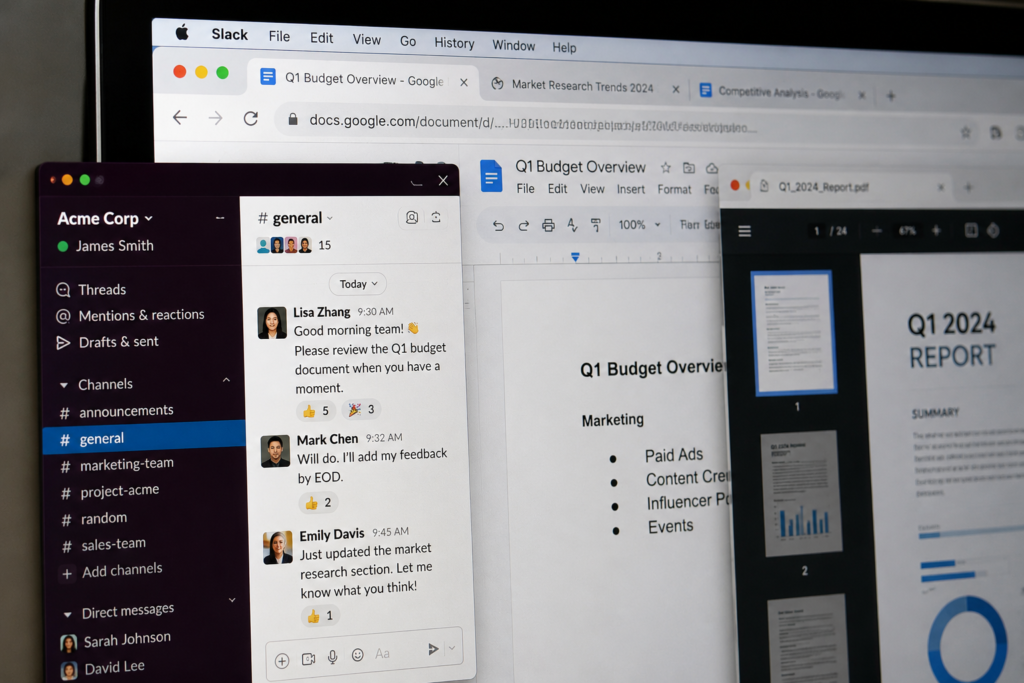
Slack primarily relies on activity coming from the device where Slack is running.
Common activity signals include:
- mouse movement;
- keyboard activity;
- interactions within Slack itself;
- active use of the Slack application.
When those signals stop for a certain period, Slack may mark your status as Away.
The exact timing can vary depending on:
- device type;
- desktop application;
- browser version;
- mobile application activity;
- operating system behavior.
This is why some people remain active longer than others under seemingly identical circumstances.
The practical takeaway is simple:
If Slack continues receiving activity signals, your status generally remains active.
If those signals stop, Slack may switch you to Away.
Method 1: Use Caffeine
This is the solution that worked best for me.
While working for a company with heavy micromanagement, I constantly worried about Slack changing to Away.
The frustrating part was that I was genuinely working.
I spent large portions of the day reading documents, conducting research, reviewing information, and writing content. Despite being productive, Slack frequently marked me inactive.
Eventually I installed Caffeine.
After that, the problem disappeared.
What Is Caffeine?
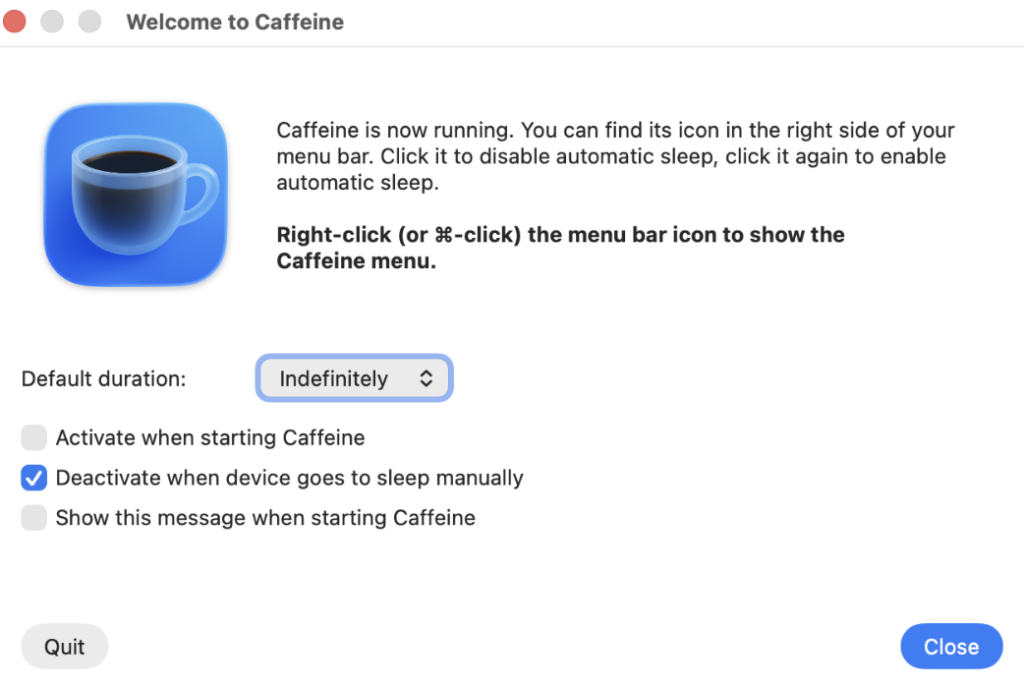
Caffeine is a lightweight application designed to prevent your computer from going idle.
It periodically sends activity signals that keep your computer awake and active.
Because your device remains active, Slack is less likely to switch your status to Away.
How to Install Caffeine
For Windows:
- Download Caffeine from the developer’s website.
- Install the application.
- Launch it.
- Enable it while working.
For Mac users, there are similar utilities available that perform the same function.
How It Works
The application periodically simulates activity.
This prevents:
- sleep mode;
- screen locking;
- inactivity triggers.
As a result, Slack continues receiving activity signals.
Advantages
- Easy to install.
- Lightweight.
- No Slack configuration required.
- Works while reading documents.
- Works during research sessions.
- Works while watching training videos.
Limitations
It cannot solve every situation.
If your company uses additional monitoring software, that software may rely on different activity signals.
However, for Slack status specifically, Caffeine remains one of the most popular solutions among remote workers.
Method 2: Adjust Computer Sleep Settings
Sometimes the problem is not Slack itself.
The problem is your computer.
Many operating systems automatically:
- dim the display;
- activate screen savers;
- enter sleep mode;
- reduce activity after periods of inactivity.
When that happens, Slack may stop reporting active status.
Windows
Open:
Settings → System → Power & Battery
Check:
- Sleep settings
- Screen timeout
- Power mode
Consider increasing timeout durations during working hours.
Mac
Open:
System Settings → Displays
and
System Settings → Lock Screen
Review:
- display sleep settings;
- screen saver timing;
- automatic lock settings.
Many remote workers accidentally trigger Slack inactivity because their computer enters a low-power state while they are reading or watching content.
Simply extending these timers often improves Slack activity consistency.
Method 3: Keep Slack Open on Multiple Devices
Another simple way to improve your chances of staying active is to keep Slack connected on more than one device.
Many remote workers use:
- Slack desktop application;
- Slack in a browser;
- Slack mobile app.
Having multiple active sessions can sometimes help maintain active status longer, especially if you frequently move between devices throughout the day.
For example:
- reading documents on your laptop;
- checking Slack on your phone;
- participating in meetings on a second monitor.
Desktop Application
The desktop application usually provides the most reliable status updates.
If you only use Slack in a browser, consider installing the desktop version.
Browser Version
Keeping Slack open in a browser can provide an additional active session.
Some users find this improves consistency, particularly when switching between work applications.
Mobile App
The mobile app can also contribute to activity detection when you occasionally interact with it throughout the day.
Limitations
This is not a guaranteed solution.
Slack still relies on activity signals.
Opening Slack on multiple devices helps, but it will not necessarily keep you active indefinitely if there is no interaction at all.
Method 4: Use Slack Status Correctly
Many people focus entirely on the green dot and ignore Slack’s built-in status tools.
In reality, custom statuses can often prevent misunderstandings.
Create Custom Statuses
Examples:
Reviewing documentation
Watching training materials
Writing content
Researching
These statuses immediately explain why your activity may be lower than usual.
Scheduled Statuses
If you regularly spend time on specific tasks, scheduled statuses can be useful.
Examples:
- Deep work session
- Training session
- Documentation review
- Client research
Availability Settings
Check your Slack preferences and make sure your availability settings reflect your working schedule.
This won’t keep the green dot active, but it does provide context for teammates and managers.
Method 5: Stay Active While Reading Documents
This is one of the most common situations for remote workers.
Many people search specifically for how to stay active on Slack while reading documents because reading often produces almost no activity. Spending long hours reviewing reports, documentation, and training materials can also contribute to mental fatigue. If constant online availability is starting to feel exhausting, it may be worth learning the early signs of job burnout before they become a bigger problem.
Common examples include:
- PDFs;
- contracts;
- training materials;
- technical documentation;
- research reports;
- long-form articles.
Practical Solutions
Use Caffeine
This remains the easiest solution.
The application keeps activity signals active while you focus on reading.
Use Split Screen
Keep Slack visible alongside your documents.
Occasional interactions become easier when Slack remains on screen.
Review Documents in Sections
Instead of reading an entire report in one sitting, consider breaking it into smaller sections.
Between sections:
- reply to messages;
- review channels;
- check notifications.
This naturally generates activity.
Keep Notes Digitally
Typing notes while reading creates regular keyboard activity and helps maintain active status.
Method 6: Stay Active During Long Meetings
Meetings create another common Slack problem.
You are working.
You are participating.
But Slack may still switch your status to Away.
This often happens during:
- Zoom meetings;
- Google Meet calls;
- Microsoft Teams meetings;
- webinars;
- screen-sharing sessions.
Zoom
If you are simply watching a presentation, there may be little keyboard or mouse activity.
Slack can eventually interpret this as inactivity.
Google Meet
The same issue often occurs during long training sessions or company meetings.
Microsoft Teams
Running Teams and Slack simultaneously can create periods where Slack receives fewer activity signals.
What Helps
- keeping Slack open;
- taking notes;
- occasionally reviewing messages;
- using Caffeine when appropriate;
- avoiding sleep mode during meetings.
These small actions usually prevent unexpected status changes.
Methods Remote Workers Commonly Use
Remote workers have developed several practical approaches over the years.
Caffeine
The most common solution.
Pros:
- simple;
- lightweight;
- effective.
Mouse Jiggler
Some users prefer mouse jigglers.
These tools create periodic mouse movement.
Pros:
- simple concept;
- widely used.
Limitations:
- may be restricted by company policies;
- some employers prohibit them.
Browser-Based Solutions
Some browser extensions attempt to keep devices active.
Effectiveness varies significantly.
Secondary Devices
Many remote workers keep Slack available on:
- a tablet;
- a second laptop;
- a phone.
This allows occasional interaction without interrupting primary work.
What Actually Works Best
After testing different approaches, the most practical ranking looks like this:
1. Caffeine
Best overall solution.
Reliable.
Simple.
Works while reading documents, researching, writing, or watching training videos.
2. Adjust Sleep Settings
Often overlooked.
Many Slack inactivity problems begin with computer power settings rather than Slack itself.
3. Keep Slack Open on Multiple Devices
Useful as a secondary solution.
4. Digital Note-Taking
Works naturally without additional software.
5. Mouse Jigglers
Effective for some users, but not always necessary.
FAQ
How to stay active on Slack without touching your computer?
The most common solution is using a utility such as Caffeine, which keeps the computer active and prevents inactivity triggers while you continue working.
How to appear online on Slack all day?
The most reliable methods are:
- using Caffeine;
- adjusting sleep settings;
- keeping Slack active on multiple devices;
- avoiding automatic idle states.
How to prevent Slack from showing Away?
Prevent your computer from entering sleep mode, keep Slack running, and ensure activity signals continue while you work.
Does Slack track activity?
Slack primarily relies on activity from devices where the application is running. It does not directly measure productivity or actual work performed.
How remote workers stay active on Slack?
Many remote workers use a combination of:
- Caffeine;
- proper power settings;
- multiple Slack devices;
- regular note-taking;
- occasional Slack interactions.
Many people searching for Slack productivity tips are also looking for fully remote jobs. If you’re currently job hunting, this guide explains how to use LinkedIn to find a remote job and connect with recruiters looking for remote workers.
Why does Slack show me Away when I am working?
Because Slack measures activity signals rather than actual work. Reading documents, watching videos, conducting research, and reviewing materials often produce little keyboard or mouse activity, causing Slack to assume you are inactive.
Explore the Remote Work & Careers Hub
Discover more practical guides about remote jobs, hybrid work, career growth, burnout and the realities of building a career outside the traditional office.
Explore the Remote Work & Careers Hub →This article combines personal experience working remotely, independent editorial research, and discussions with remote workers who regularly use Slack while working from home, attending meetings, reading documentation, and completing long periods of focused work.
Research sources included:
- My own experience working remotely in companies where Slack activity and online presence were closely monitored.
- First-hand observations using Slack while researching, reading documents, attending training sessions, and completing focused work tasks.
- Community discussions and experiences shared by remote workers on Reddit communities focused on remote work, productivity, and Slack usage.
- Documentation and support resources published by Slack explaining activity status, availability settings, and user presence indicators.
- Research into commonly used productivity tools such as Caffeine and other methods remote workers use to prevent computers from entering idle mode.
- Discussions with remote employees, freelancers, and digital nomads about practical ways of staying active on Slack while working remotely.
The goal is to provide practical solutions for remote workers who want to keep their Slack status green, prevent Slack from showing them as Away while they are still working, and understand which methods actually work in real-world remote work environments.

Founder & Editor
Founder of The City Theory, writing about digital nomad lifestyle, modern city culture, remote work, travel experiences, psychology and human behaviour around the world.